Free PDF to JPG Converter
Convert your files easily with our free PDF to JPG converter. Learn how to transform your PDFs into high-quality JPG images on our blog today!
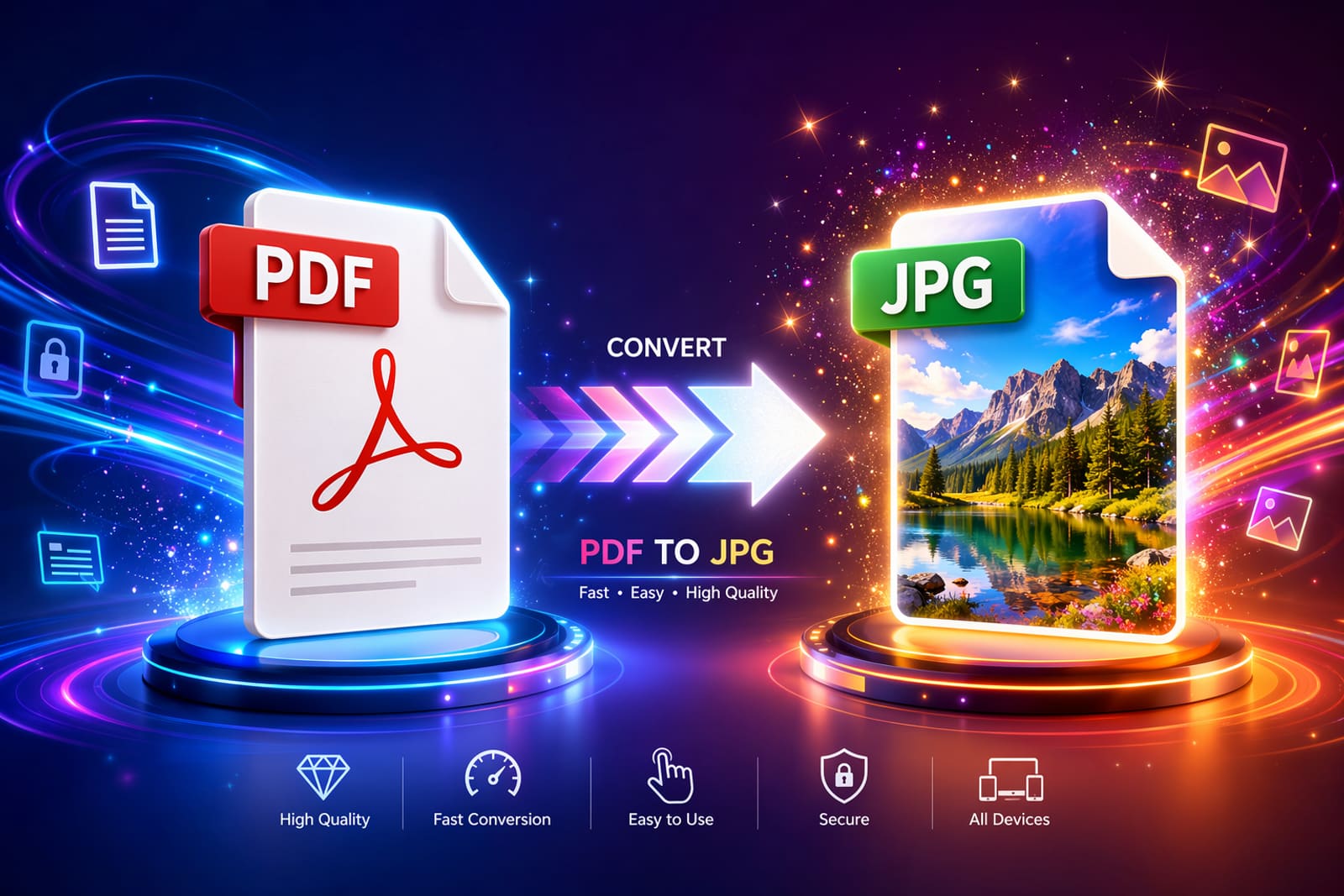
Key Highlights
- A pdf converter helps you convert pdf pages into a jpeg file fast and without extra setup. Using Canva as a pdf converter is simple: just upload your pdf to Canva, select the pages you wish to convert pdf to, and then download them as a jpeg file. This process lets you take advantage of Canva’s jpeg converter capabilities seamlessly. A good jpeg converter should work as an online converter in any browser and on mobile devices.
- A good jpg converter should work as an online converter in any browser and on mobile devices.
- High quality output matters if your pdf file includes charts, photos, or scanned pages.
- Some tools let you convert full pages, while others can extract images separately.
- Security matters too, so look for protected transfers and short file retention on servers.
- Tool choice depends on speed, page selection, batch use, and image settings.
Introduction
Need a quick way to turn a pdf file into a jpg file? A free pdf converter can do that in just a few clicks, often right inside your browser. If you want an easy option, you can use ToolifyPDF at https://toolifypdf.online to handle common document tasks online. This guide explains when conversion makes sense, how the process works, what tools to compare, and how to keep your files clear, secure, and easy to share.
Understanding PDF and JPG File Formats
The pdf format is built to preserve layout. That is why a pdf document usually looks the same across devices, browsers, and operating systems. It can hold text, graphics, and images in one reliable file format.
The jpg format, by contrast, is mainly used for images. It uses compression to reduce file size, which makes sharing easier on websites and through everyday apps. Before you convert anything, it helps to understand how these two formats behave in real use.
Key Differences Between PDF and JPG
Start with purpose. The pdf format is designed for documents that need stable structure, while the jpg format is designed for images. If your file includes text, diagrams, and page layout, PDF is usually the stronger choice.
Then look at file size and flexibility. JPG files are often smaller because they compress image data. That makes them easier to post online or send quickly. A pdf converter turns each page into an image, which is useful when you need visual output rather than an editable document.
Will converting a PDF to JPG affect the image quality? It can, depending on the tool and settings. High-resolution conversion keeps pages crisp, while heavy compression may soften details. Tools that offer better DPI or quality controls usually give a clearer result, especially for scans, graphs, or photo-heavy pages.
When to Use PDF Versus JPG
Choose based on what you need to do next. A pdf file is better when you want to preserve structure, keep multiple pdf pages together, or share a document that should look the same everywhere. Jpg images are better when you need a quick visual file for web use or simple sharing.
Use PDF instead of JPG when your file is still acting like a document, not just a picture. If you want page consistency, PDF usually wins.
- Use a pdf file for reports, forms, and multi-page materials.
- Use jpg format for web images and quick previews.
- Keep PDF when layout accuracy matters.
- Use JPG when a single page needs to be shared as an image.
That difference is why many people convert only at the last step, once the document no longer needs to stay in document form.
Why Convert PDF to JPG?
Sometimes you do not need a full document anymore. You just need an image version of one page, several pdf pages, or a visual file that opens easily across apps and devices. That is where a pdf converter becomes useful.
When you convert pdf files with a jpg tool, you make pages easier to preview, upload, and share. This can also help when a platform prefers images over document uploads. The reasons vary, so the next sections cover the most common situations and the main advantages.
Common Scenarios for PDF to JPG Conversion
A lot of users need jpg conversion for practical reasons, not technical ones. You may have a pdf document with one page you want to post, send, or reuse as an image. In those cases, converting the page into a jpg file is often faster than taking screenshots.
A pdf converter is especially helpful when you want cleaner output than a manual screen capture. It can also process full pages consistently.
Common use cases include:
- Sharing a brochure page as an image
- Saving a scan for quick upload
- Posting a document preview on a website
- Sending one page through chat or email
- Turning visual pages into image assets
If you are wondering about the best use cases for converting PDF to JPG, they usually involve easier sharing, simpler publishing, and getting individual page visuals without changing the original source file.
Advantages of JPG Files Over PDF Documents
The first big advantage is simplicity. Jpg images open easily in browsers, photo viewers, messaging apps, and design tools. A pdf document may still be easy to open, but an image file can be quicker to insert into web pages or visual workflows.
Another benefit is file size in many cases. Because JPG uses compression, the output can be easier to send or upload. That is useful when you care more about convenience than document structure. A solid jpg converter helps balance clarity and smaller output.
So, what are the main benefits of using JPG instead of PDF? You get image-friendly sharing, broad compatibility, and simpler publishing. JPG is also better when you only need one visual page rather than a complete multi-page document. Just remember that convenience can come with some quality trade-offs if settings are too aggressive.
How to Convert PDF to JPG Online for Free
A browser-based online converter is usually the easiest way to convert pdf files without installing software. Most tools follow the same pattern: upload the file, choose page conversion or image extraction, wait a few seconds, then download the result.
A good pdf converter or jpg tool should work on desktop and mobile and should not require extra setup for basic use. If you want a free pdf workflow with a clean interface, ToolifyPDF at https://toolifypdf.online is worth checking alongside other browser tools.
Step-by-Step Guide to Using ToolifyPDF Online Converter
If you need a quick answer to “How can I quickly convert a pdf file to JPG format online?” the process is simple. Open ToolifyPDF at https://toolifypdf.online in your browser, upload the file, choose the conversion option, and download the output once the jpg conversion finishes.
Because it is an online converter, you only need a stable internet connection and a browser. There is no need to install extra programs for a basic task.
Typical steps look like this:
- 1Open the converter page
- 2Upload your pdf file
- 3Choose page conversion or image extraction if available
- 4Start the conversion
- 5Download the JPG output
With ToolifyPDF, you can complete this task in just a few clicks. If you also need related help, online platforms often pair conversion with tools like PDF merge, split, compress, or image extraction for a smoother workflow.
Tips for Converting PDF and JPG Files Securely
Yes, there can be privacy concerns with online converters, especially when files contain personal or business content. Your files travel over an internet connection to remote servers, so it is smart to be selective about the service you use.
Look for platforms that describe how they protect uploads and when they delete processed files. That is a strong sign of secure conversion practices. Some services mention encrypted transfer, automatic deletion after processing, or compliance details.
Here are a few safe habits:
- Avoid uploading sensitive files unless necessary
- Use trusted services with clear privacy details
- Check whether files are deleted after conversion
- Prefer tools that secure transfers to servers
These steps matter no matter which file format you convert. A secure tool should protect the upload stage, the processing stage, and the file removal stage after the job is done.
Choosing the Best Free PDF to JPG Converter Tools
Not every converter tool works the same way. Some focus on fast page conversion, while others add extraction, compression, or batch options. If you are comparing a jpg converter, pay attention to quality settings, speed, and whether the tool works fully in the browser.
A useful online converter should also be easy to use on different devices. If you want a free pdf option, compare what each service offers before you upload. The table below makes that easier.
Top-Rated PDF to JPG Online Solutions Compared
If you are asking, “What are the best free tools for converting PDF to JPG images?” the answer depends on your needs. Some users want full-page output, some want image extraction, and others care most about security or mobile access. That is why a simple comparison helps.
Below is a practical look at popular browser-based options mentioned in the source material. Each converter tool has a slightly different strength.
| Tool | Best For | Noted Features |
|---|---|---|
| ToolifyPDF | Simple online document tasks | Browser-based use, quick workflow, helpful related PDF tools |
| Smallpdf | Fast full-page conversion | Batch conversion, high-resolution output, mobile app, auto deletion after processing |
| Adobe Acrobat | Trusted browser conversion | Full-page JPG conversion, secure handling, browser support, easy sharing |
| FreeConvert | Flexible settings | Page range, resize, compression, DPI options, extract all images |
| iLovePDF | Easy general use | PDF to JPG, image extraction, desktop version mentioned |
The best jpg tool for you is the one that matches your workflow. If you want simple browser access without downloading software, ToolifyPDF and other web-based options are the most direct starting point.
What to Look for in a PDF to JPG Converter
Yes, there are pdf converter options that work without downloading software. Many services run in the browser, which makes them easier to use on shared devices, work computers, or phones. The right conversion tool should feel simple from the first click.
Still, speed alone is not enough. You also want control over image quality, page handling, and output type. A good jpg tool should help you get the result you actually need.
Look for features like:
- Browser-based use with no install required
- Full-page conversion and image extraction
- Page range or page selection controls
- Quality, DPI, or compression settings
- Clear privacy and file deletion details
If a tool checks these boxes, it is usually a strong fit for everyday use. That is especially true when you want fast results without turning to desktop software.
Essential Features in Online PDF to JPG Conversion
The best online tools do more than simply change one format into another. A strong pdf converter should give you control over pages, output quality, and download format, especially when your pdf file is large or image-heavy.
A reliable jpg tool should also work across major browsers and devices. Features like page selection, extraction, and batch handling can save time and reduce repeat work. The next two sections focus on the features people usually need most.
Batch Conversion, Page Selection, and Quality Settings
Some platforms support batch conversion, which means you can upload more than one file and process them together. That is useful when you are handling repeated reports, scans, or image-based documents. In the source material, Smallpdf and other tools mention converting multiple files at once.
Page selection matters too. Instead of converting every page, you may want only a few pdf pages. Some tools also let you choose between turning pages into jpg images or extracting embedded pictures separately.
Useful features include:
- Batch conversion for multiple files
- Page range selection for chosen pages
- DPI or quality controls for better output
- Separate options for pages versus extracted images
Can you batch convert multiple PDFs to JPG images for free? Some tools say yes for at least basic use, but limits can vary. Always check upload caps, page limits, or trial restrictions before you start.
Privacy and Security When Converting Files Online
Are online PDF to JPG converters safe to use? They can be, but safety depends on the provider. Because files move through an internet connection to external servers, you should only use services that explain how uploads are protected and when files are removed.
Several tools in the source material mention security steps such as encrypted transfer or automatic deletion after a set time. Those details matter because they reduce the chance that your files stay stored longer than expected. Clear privacy practices are part of secure conversion, not an extra feature.
Before uploading, check the service page for file handling information. If you are working with routine, non-sensitive documents, browser conversion is often convenient. If your file is highly confidential, you may prefer an offline option when available, or at least a tool with strong published security commitments.
Extracting Images from PDF Files as JPG
Sometimes you do not want the whole page as an image. You only want the pictures stored inside the pdf file. In that case, you need a tool that can extract embedded images rather than simply convert each page.
This is different from page conversion. A regular pdf converter may turn every page into one image, while extraction pulls out the original visual elements as separate jpg images when the tool supports it. That difference is important when you need individual assets.
How to Save Individual Pages or Images from PDF as JPG
Yes, in many cases you can convert only specific pdf pages instead of the full document. Some tools include a page range field where you enter the pages you want. That helps when only one section matters.
The process is usually straightforward. Upload the file, select the pages, then convert pdf content into separate jpg images. If the service offers extraction, you may also be able to pull out images rather than full pages.
Typical options include:
- Select one page only
- Enter a page range like 1-3
- Pick several pages such as 1, 5, and 6
- Download the results as separate files
A capable jpg converter makes this much easier than cropping screenshots by hand. It also keeps output more consistent, especially when page dimensions or resolution matter.
Using ToolifyPDF for Image Extraction from PDFs
If you are looking for an easy browser workflow, ToolifyPDF provides a simple way to handle document tasks online at https://toolifypdf.online. For users who need extraction features, it helps to choose a tool page that clearly separates page conversion from image extraction.
Is there a way to extract all images from a pdf file and save them as JPGs? Yes, some online services in the source material specifically offer that option. Instead of creating page screenshots, they pull out embedded visuals as separate jpg images. That is better when you need the actual graphics from the document.
When using any online converter, check the output choice before you begin. If you only want the pictures, choose extraction. If you want each page as one image, choose page conversion. ToolifyPDF is also a natural place to look for related tools such as extract pages, split, merge, or compress functions when your workflow includes more than one step.
Troubleshooting and Best Practices for PDF to JPG Conversion
Even a good pdf converter can produce results you do not love if the settings are off. Blurry pages, oversized files, or slow uploads usually come down to quality settings, page choices, or limitations in the conversion process.
A few small adjustments can improve jpg conversion a lot. That is why basic troubleshooting matters. The next sections cover how to protect clarity and how to manage larger files or multiple documents without making the task harder than it needs to be.
Avoiding Quality Loss During Conversion
Yes, converting can affect image quality, but the impact depends on the tool and settings. If the output uses strong compression, small text or fine lines may look softer. A better jpg converter gives you more control over DPI, output size, or compression level.
Start by checking the source file. If the original document is already low quality, conversion cannot restore lost detail. Then use a pdf converter that offers higher-resolution output. Several tools in the source material highlight high-quality conversion as a key feature.
If your file looks blurry, try again with better settings and do not over-compress the result. Quality usually improves when you choose higher DPI for pages with charts, scanned text, or photos. The best approach is simple: preserve clarity first, then reduce size only if you truly need a lighter image file.
Handling Large or Multiple PDF Documents
Large files can take longer to upload and process, especially on a slower connection. If your pdf file has many pages, first decide whether you need every page or only a range. Converting fewer pages saves time and storage.
For multiple documents, batch conversion is the most practical option. Some services allow you to upload several files at once and then download the results together. That can be a big time-saver if you regularly turn reports or scans into jpg images.
After conversion, tools may package many results into a zip file for easier download. That helps keep dozens of output images organized. If you want to batch convert multiple PDFs to JPG images for free, check the free limits first. Some services support it for basic use, while others restrict file count, size, or advanced options unless you upgrade.
Additional PDF Tools and Related Conversions (e.g., JPG to PDF, Rotate PDF, Reduce File Size, Edit, Sign & Protect)
When dealing with PDFs, it’s not just about converting to JPGs; a range of other tools can enhance your document management experience. For instance, if you have JPG files that you need to convert back to PDF, countless online converters can efficiently handle that task, ensuring that your images are preserved in a PDF format for easier sharing and printing. Additionally, the ability to rotate PDF files can come in handy, particularly if pages have been scanned in the wrong orientation. Moreover, if you’re looking to reduce file size—especially important for email attachments or uploads—there are tools that compress PDFs without sacrificing quality. For those who need to make edits directly to their PDFs, features for adding annotations, editing text, and altering images can streamline your workflow. Signing and protecting your PDFs is another essential service, with numerous platforms offering features that not only allow you to add digital signatures but also secure your documents from unauthorized access. Exploring these additional PDF tools ensures that your document management process is streamlined, versatile, and secure, catering to various needs beyond just conversion.
PDF to Image Conversion Beyond JPG (Universal Converters, Other Formats)
While JPG is a popular format for image conversion, it’s essential to recognize that there are numerous other image formats available, each with unique benefits suited for different scenarios. Universal converters extend beyond just transforming PDFs into JPGs; they can output images in various formats like PNG, BMP, GIF, and TIFF. For instance, PNG files are excellent for web use because they support transparency and maintain high quality without loss, making them ideal for graphics and logos. On the other hand, formats like TIFF are favored in professional photography due to their capability of storing high-resolution images without compromising detail. When selecting a converter, consider tools that facilitate multiple format outputs to give you the flexibility needed for specific applications. This broader approach not only enhances your ability to share visuals across diverse platforms but also meets your particular needs—whether for web graphics, print quality, or a quick preview. Additionally, look for converters that offer features like batch processing or image extraction, as these can further streamline your workflow and optimize document management.
Conclusion
In conclusion, converting PDF files to JPG format opens up a world of possibilities for better image usability and accessibility. Whether you’re looking to share images online, include visuals in presentations, or simply need a more versatile file format, knowing how to effectively navigate the conversion process is key. With tools like ToolifyPDF, you can ensure that your conversion is not only seamless but also maintains the quality of your images. Remember to consider essential features such as batch conversion and privacy protections when choosing a converter. If you’re ready to make your files more manageable, try out ToolifyPDF’s free online PDF to JPG converter today!
Ready to Convert Your PDF?
Convert your PDF pages into high-quality JPG images in seconds with ToolifyPDF.