Merge PDFs for Free — Combine PDF Files Online
Need to join reports, forms, or scans into one file fast? A free online PDF merger makes that easy. Instead of installing a full PDF editor, you can use a browser-based PDF combiner to upload, arrange, and download a single file in minutes.
Key Highlights
A good merge pdf tool lets you join files in a browser with quick pdf merging and very little setup.
Many best tools work on Windows, Mac, Linux, and mobile, so you can merge on almost any device.
Some options, including ToolifyPDF, offer a pdf combiner with no registration and a simple interface.
File sizes, privacy handling, and speed vary, so checking limits matters before upload.
Several tools also act as a pdf editor with reorder, split, and image files support.
Beginners often want simplicity, while advanced users may need more features and higher limits.
Introduction
Need to join reports, forms, or scans into one file fast? A free online pdf merger makes that easy. Instead of installing a full pdf editor, you can use a browser-based pdf combiner to upload, arrange, and download a single file in minutes.
This merge pdf guide keeps things practical. You will see which tools are easiest to use, what merge pdf benefits to expect for your workflow, and what privacy trade-offs to watch for. Real merge pdf examples — like combining contracts, invoices, and scanned pages — are included so you can see exactly where this fits into everyday document tasks.

The Easiest Ways to Merge PDFs for Free Online
If you want to combine pdf documents without installing software, a browser-based pdf merge tool is usually the fastest path. You upload files, reorder them, click merge, and save the result. That works well on Windows, macOS, and most mobile devices too.
Still, not every merge pdf tool is the same. Some focus on simplicity, others add cloud access, page tools, or desktop options. The next sections compare the best tools, along with ease of use, limits, and privacy considerations.
ToolifyPDF – Fast, Secure PDF Merging Without Registration
ToolifyPDF is one of the best tools if you want quick pdf merging without extra steps. It runs in your browser, works across devices, and does not ask you to create an account before using the pdf merger.
Just upload your files, arrange them, and download the combined result. The interface is simple, processing is fast, and the service is completely free — no hidden limits on the free plan.
It is especially useful when you need speed and convenience. That said, be cautious with highly confidential documents on any online platform, just as you would with any browser-based pdf combiner.
- Completely free with no registration required
- Fast browser-based processing with a simple interface
- Multiple PDF tools in one place for broader workflow needs
Merge2PDF – Combine PDFs Instantly on Any Device
Merge2PDF is built for convenience. If you need a pdf merge tool that opens in a browser and works on desktop, tablet, or phone, it fits the job. That also means you can merge PDFs on Windows without Adobe Acrobat.
The layout is easy to follow — upload files, place them in order, start the process, and download the finished file. For beginners, that simplicity is a real advantage. You do not need a full pdf editor just to join a few files.
Before using it, check its limits. Some online tools restrict file sizes or the number of files in the free version.
- Works through a browser on many devices
- Simple upload, arrange, and download process
- Limits may apply to size or file count
Smallpdf – User-Friendly PDF Combiner with Cloud Support
Smallpdf is a well-known pdf combiner for users who like a clean interface. Its biggest draw is cloud support — you can import files directly from Google Drive or Dropbox instead of uploading from local storage.
From a usability standpoint, it is easy to learn. Add files, arrange them, and export the merged result. The platform also offers features beyond a basic pdf merger if you handle document tasks regularly.
The free version works well for light use, but some advanced features sit behind a paid plan. That matters if you need frequent merging or more flexibility.
- Google Drive and Dropbox support
- Clean interface for fast combining
- Extra tools available, though some require payment
ILovePDF – Reliable PDF Merging and Additional Tools
ILovePDF is popular because it does more than merging. If you want a pdf merge tool plus pdf split options and other document helpers, it offers a wide range of features in one place. That makes it useful for people with repeat tasks. Using it feels straightforward. You add files, place them in order, and export one combined file. Depending on the plan, limits may affect the number of pages or the number of files you can process comfortably in one go. It is also known for accessibility through browser-based use, and some users look to it when they want extension-style convenience.
- Reliable for merging and other PDF tasks
- Easy ordering before export
- Useful if you need more than a basic merger
PDF24 Tools – Merge PDF Documents Free on Windows & Mac
PDF24 Tools stands out because it gives you both web-based and desktop choices. If you want flexibility on Windows or Mac, this can be a smart pick. You can use it in a browser for convenience or look at desktop-style options when privacy matters more. That privacy angle is important. Some processing methods can avoid sending files away from your device, which reduces concerns about remote servers. For users handling more sensitive material, that can be a deciding factor. Beyond merging, it includes extra pdf tools that help with everyday work. That wider toolkit makes it more than a simple pdf editor substitute.
- Web and desktop flexibility
- Better privacy potential for local handling
- Extra PDF utilities for broader tasks
Quick Comparison of Popular Tools
| Tool | Best For | Registration | Cloud Support | Privacy Note |
|---|---|---|---|---|
| ToolifyPDF | Fast everyday merging | No | Not highlighted | Browser-based, good for routine files |
| Merge2PDF | Simple cross-device use | Not specified | Not highlighted | Check file limits and privacy terms |
| Smallpdf | Cloud-based workflows | Not always required | Google Drive, Dropbox | Review free plan limits |
| ILovePDF | Extra PDF features | Not always required | Supported on platform workflows | Check page and task limits |
| PDF24 Tools | Web and desktop flexibility | Not specified | Not central feature | Local options may improve privacy |

How to Combine PDF Files Without Installing Software
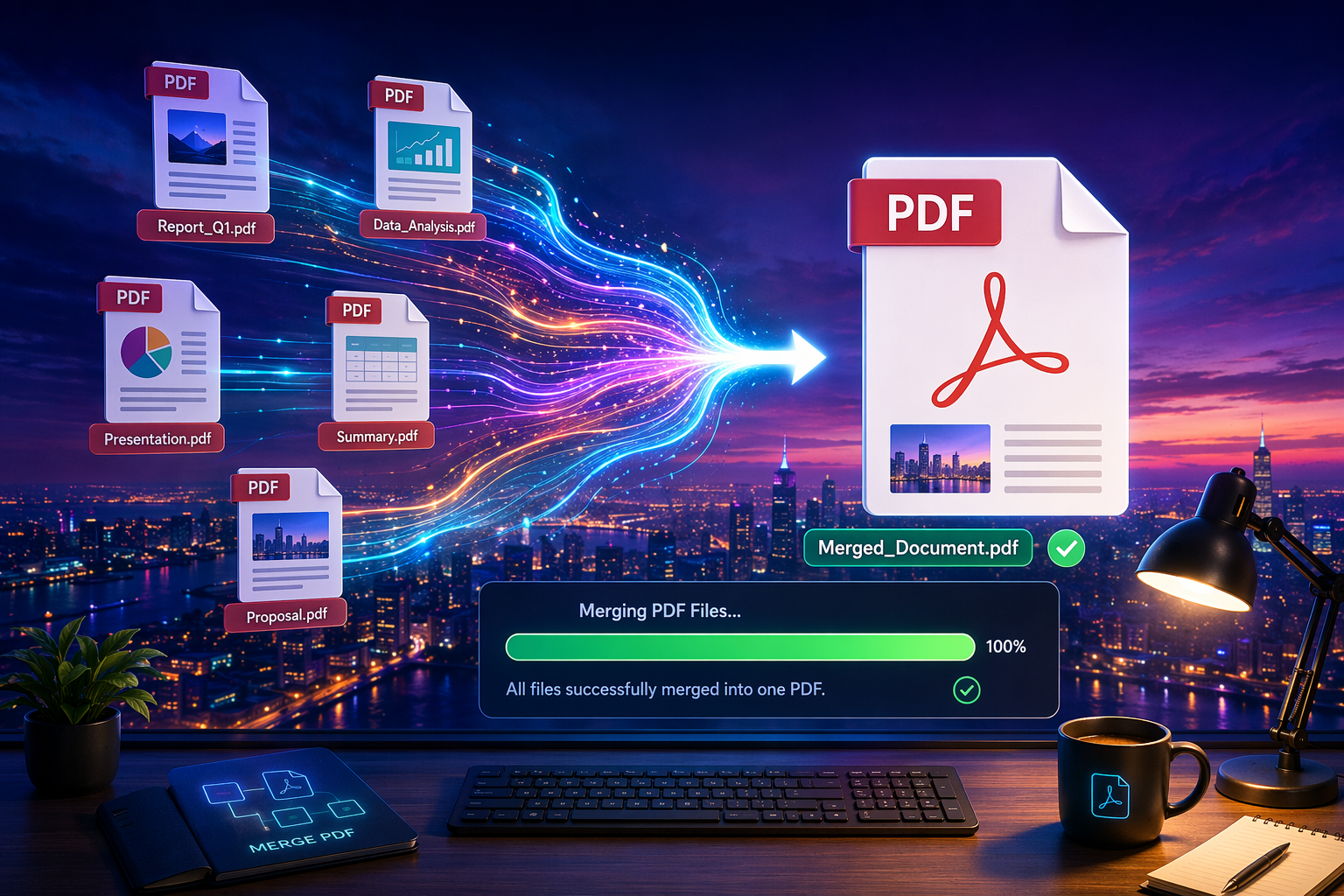
For most people, the easiest method is a browser-based pdf merger. Open the tool, use the drop feature to upload files, reorder them, merge them, and save the result. The whole workflow usually takes only a minute or two.
That speed is why online tools are so popular. You do not need setup, updates, or extra storage space. A good pdf combiner works directly in your browser, which is perfect for quick school, work, or home tasks.
Using Browser-Based PDF Tools for Quick Merges
Here is the basic process most tools follow. First, open your chosen merge pdf tool in a browser. Then upload files with the drop feature or a file picker. Many tools place the main action near the top right corner so it is easy to spot.
Next, check the order before you continue. A good interface lets you drag items into place. Once everything looks right, click the merge button and wait for the tool to create your single file.
This method is popular because it is simple and fast.
Open the tool in your browser
Upload or drag your files into the workspace
Reorder items before processing
Click merge, then download the result
Rearranging Pages and Organizing PDFs Before Combining
Order matters more than many people expect. If you merge files without checking sequence, the final document can feel confusing or incomplete. That is why many users choose a pdf merger that lets them reorder files before processing.
Some platforms go further and act more like a light pdf editor, giving you options to move pages or adjust structure during the workflow. Adobe notes that order can be changed before merging, and signed-in users may get more page controls afterward depending on the tool.
When organizing, keep these points in mind:
- Put the first file at the top because it usually appears first
- Check the number of pages in long files before combining
- Remove anything unnecessary before export if the tool allows it

Security and Privacy: Is It Safe to Merge PDFs Online?
Online merging can be safe for everyday files, but you should still read the privacy policy before uploading anything important. Reputable services explain how files move through their servers and when they are deleted.
That said, highly sensitive documents deserve extra caution. If a contract, legal record, or financial file is very private, a desktop option or a tool that keeps processing local may be the safer choice. Next, let's look at practical safeguards.
Handling Sensitive Documents with Online PDF Freeware
Start with the developer's privacy policy. It should clearly explain upload handling, storage time, and deletion practices. If that information is hard to find, think twice before using the service for confidential documents.
A browser-based tool is fine for many routine tasks, but not every file belongs online. If you are dealing with highly private records, browser convenience should not outweigh security. In those cases, a local desktop tool may be a better fit than an online pdf editor.
Use online freeware carefully. Choose known platforms, avoid shared public networks, and keep originals until you verify the result. That small caution can prevent bigger issues later.
Quality Control – Does Combining PDFs Affect File Quality?
In many cases, merging alone should not cause quality loss. PDF format is built to preserve layout and formatting across devices, and Adobe specifically notes that formatting is retained when files are combined. So a normal merged pdf file should look like the originals.
Problems usually show up when another feature changes the file. A pdf compressor, watermarking rule, or conversion step may affect appearance more than merging itself. That is why it helps to know the range of features a tool applies during export.
Watch for these quality factors:
- Compression settings that reduce clarity
- Watermarks in limited free plan tools
- Output checks before you delete your source files

Conclusion
In conclusion, merging PDFs has never been easier thanks to the variety of online tools available. Whether you choose ToolifyPDF for its fast and secure merging capabilities without any registration, or explore other user-friendly options like Smallpdf or ILovePDF, you're guaranteed a smooth experience.
Remember that merging not only streamlines your documents but also enhances organization and accessibility. As you combine your PDFs, ensure you prioritize security and quality to maintain the integrity of your files.
If you're looking for a reliable solution, don't hesitate to try out ToolifyPDF today — it's completely free and designed for your convenience!
Frequently Asked Questions
Can I merge all PDFs into one file without Adobe Acrobat?
Yes. You can use a merge pdf tool in your browser instead of Adobe Acrobat. A browser-based pdf combiner lets you upload files, place them in order, and download one combined file without installing software.
Which free online PDF merger supports larger file sizes?
Support for larger file sizes depends on the platform and its free version limits. Adobe allows up to 100 files and a combined total of 1,500 pages in its tool, while other best tools may set smaller size or task limits.
What steps should I follow to merge PDF documents securely?
Choose a trusted pdf merger, read its privacy policy, and use a secure internet connection. Avoid uploading confidential documents unless you understand how the service handles files on its servers and when those files are deleted.
Related Articles
Related PDF Tools
Free browser-based tools — no installation or account needed.
Merge PDF
Combine multiple PDFs into one file instantly.
Split PDF
Extract or separate pages from a PDF.
Compress PDF
Reduce PDF file size without visible quality loss.
PDF to Word
Convert a PDF into an editable Word document.
Organize PDF
Reorder and rearrange pages before merging.
Protect PDF
Add a password to keep your PDF secure.